
How to Make a Hotline Bling AI Video
Start with one clear person or pet photo. The tool creates a 9:16 portrait dance by default, with 16:9 available. This guide shows the actual controls, role mapping and costs before you create.
Last updated: 2026-11-14
1. Add Photo 1; Photo 2 is optional
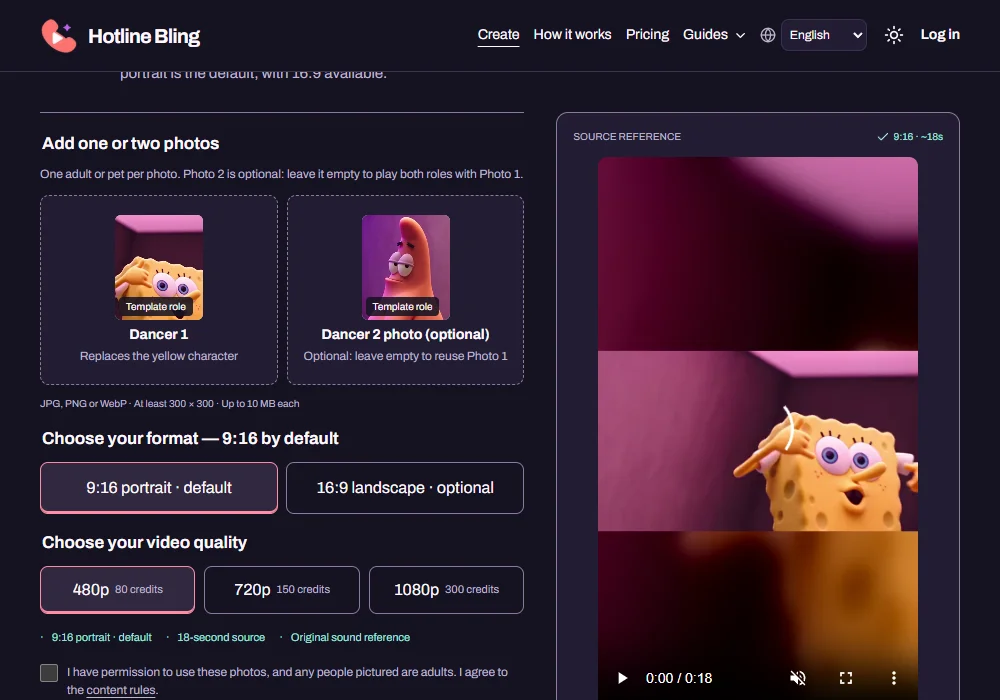
Use a clear photo of one adult or one pet. Keep the face, ears and distinctive features visible; avoid group shots, blur and strong filters. JPG, PNG or WebP, at least 300 × 300 pixels and up to 10 MB each.
Photo 1 replaces the yellow character and also the pink character when Photo 2 is empty. Optional Photo 2 replaces only the pink character. The roles alternate across shots.
2. Watch the reference with sound
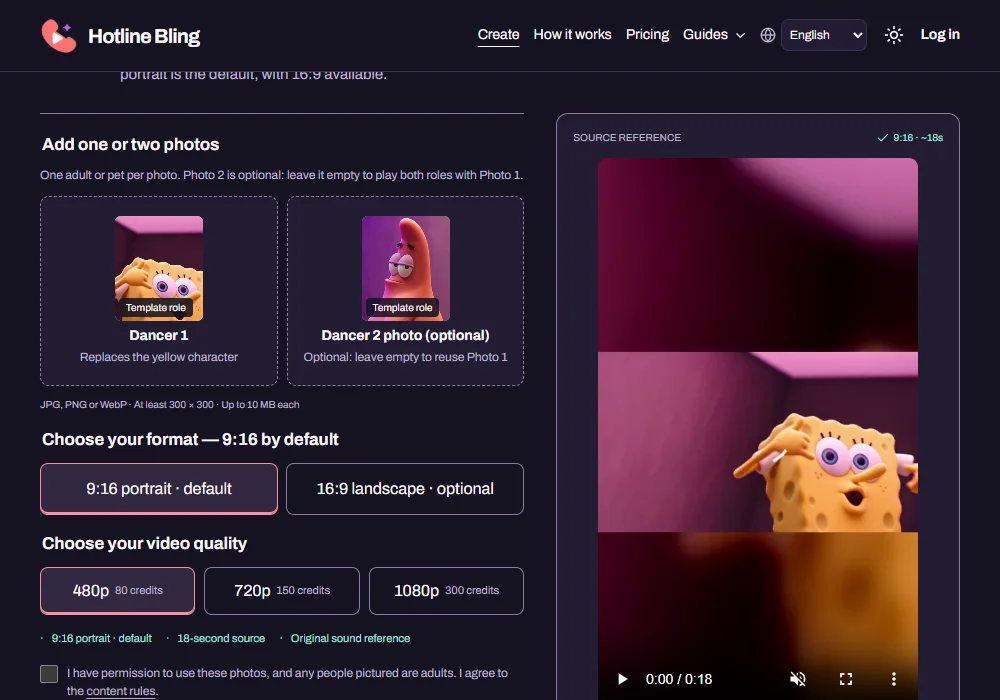
Play the whole reference before choosing quality. Notice the wide-room movement, close-up gestures, wall lean and final raised hands. The output follows this source rather than a separate social clip. Unmute the preview to hear the soundtrack.
Keep 9:16 selected for TikTok or Reels. The portrait canvas keeps the entire source picture with soft background fill above and below. Choose 16:9 only when you want landscape. Changing format updates the preview and the reference sent with your request; it does not change the credit cost.
3. Choose quality and create
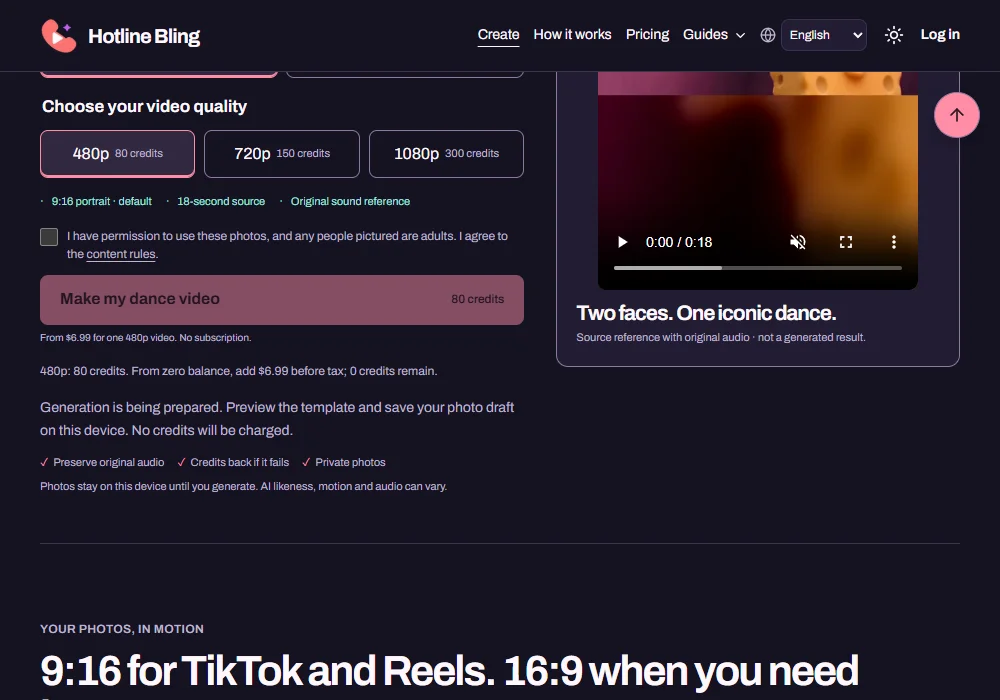
480p, 720p and 1080p use the same choreography and Seedance 2.5 model. The quality control shows the exact credit cost. Confirm photo permission, sign in and use a one-time credit pack if needed. Credits are reserved only for an accepted task.
A 480p video uses 80 credits; 720p uses 150; 1080p uses 300. The $6.99 Starter pack covers one 480p video. For one 1080p video, the $29.99 Studio pack leaves 200 credits. Per-video credit values on pricing cards are allocations of pack cost, not separate checkout prices.
4. Review and download
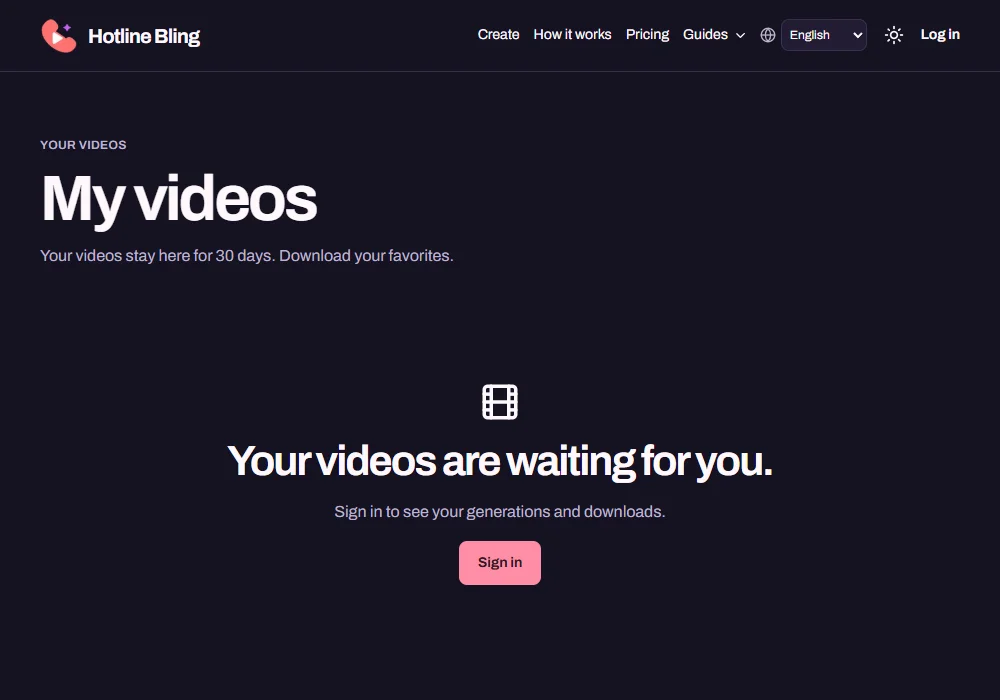
Open My videos to follow the task or return after leaving the page. Check both identities, the opening and ending, hands, each camera cut and audio synchronization. Download the completed private MP4 when ready. A download retry uses the same result; it does not generate again.
Check the selected orientation before posting. In a single-photo edit, the same person or pet should appear in both recurring roles. In a two-photo edit, check that their assignments remain consistent. The screenshot shows the account entry to My videos; it is not evidence of a generated result.
If the connection drops
Use Reconnect to recover the saved request. Avoid submitting a second request while the first is uncertain. Confirmed failures return the reserved credits once. Contact support with the task ID if a request stays under review.